Moving from MacDive to Loggerfish
MacDive keeps your log in its own format, but Loggerfish reads UDDF, an open exchange format for dive logs. Export your dives from MacDive as UDDF, then import that one file.
1. Export from MacDive
- Open MacDive and check that every dive you want to keep is in the log.
- Find MacDive’s export function (look in its File menu and in its help) and choose UDDF as the format. If it lets you choose which dives to export, choose all of them.
- Save the .uddf file somewhere you will find it again.
MacDive’s website and help pages refused to be read for this guide, so the steps above do not name MacDive’s menus or buttons: that would be guessing. Use whatever its export offers for UDDF.
Choose UDDF rather than any other format MacDive offers. It is the format Loggerfish reads for a move like this, with the gases and the depth profile. We could not test with a real MacDive file; the UDDF reader is tested with UDDF files from other programs.
2. Import into Loggerfish
- Open Loggerfish at app.loggerfish.com. Importing needs no account: the file is read on your own device.
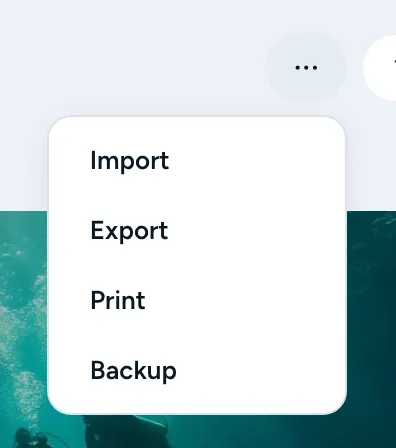
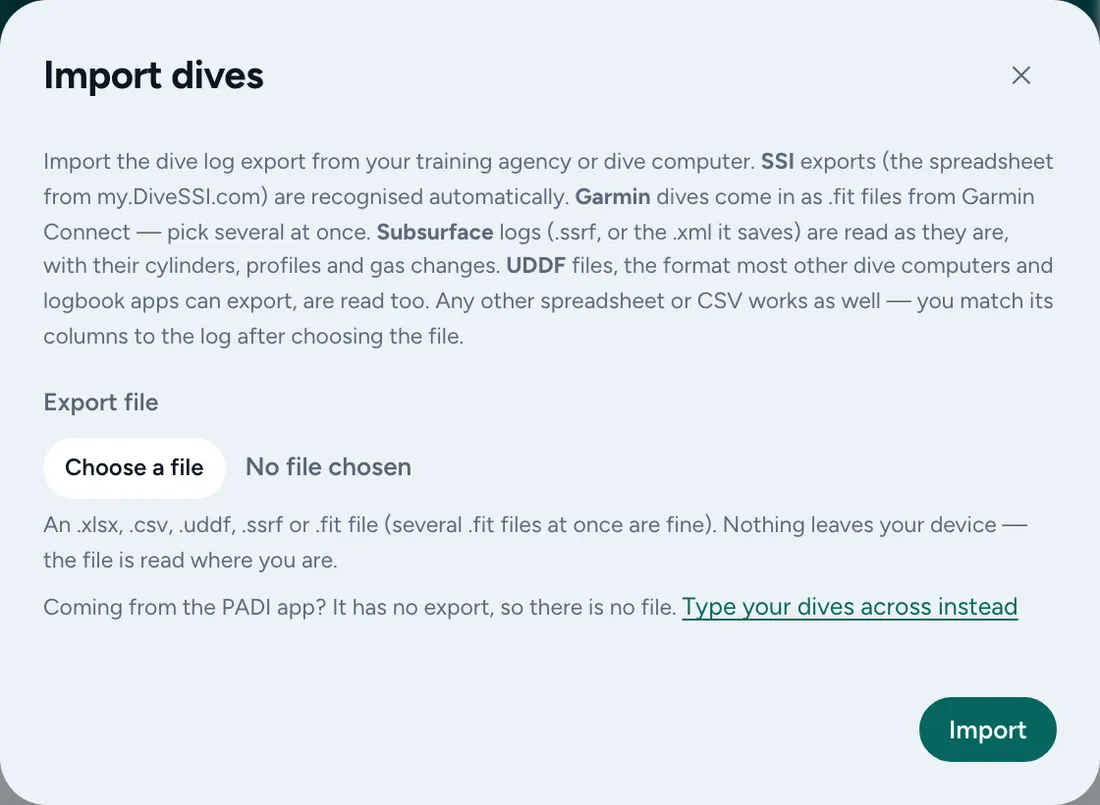
- Open the ⋯ menu (Your data) and choose Import (on a phone: More, then Import). The Import dives window opens.
- Under Export file, choose the .uddf file.
- Read the preview. It counts the dives that are new, the ones already in your log and the ones that differ, and lists each dive. Nothing has been saved yet.
- Press Import.
What comes across
- Date and time, site name and country, maximum depth, dive length, water temperature, visibility, buddies and notes, wherever the file has them.
- Cylinders with their size, pressures and gas mix (air, nitrox, trimix), the gas changes during the dive, and the air consumption worked out from them.
- The depth profile with temperature, tank pressure, no-stop time, oxygen partial pressure, ceilings, heart rate and CNS, and the dive’s alarms, where the file has them.
- Where the dive started from (shore, boat and so on) and the altitude. If the file gives each dive a number, the preview asks whether to keep those numbers or continue from your own last dive.
What does not come across
- Site positions. Loggerfish does not read a site’s coordinates from UDDF, so a dive comes in with the site’s name but not its place on the map.
- Ratings, photos, gear, weights, suit, certification, tags, dive type, current and surface conditions, air temperature, instructor and dive operator: none of these is read from UDDF, even if the file holds them.
- A dive with no date, or with no site, no depth and no length, is not imported. The preview lists it under What was left out with the reason.
Where the export steps come from
MacDive’s own pages could not be read on 29 October 2026, so the export steps above are written generically. If its export offers UDDF, the file you get is the one to import.