Moving your dives from Shearwater Cloud to Loggerfish
Shearwater Cloud can save your dives as a UDDF file, an open exchange format for dive logs. Loggerfish reads UDDF as it is, so the move is one export and one import.
1. Export from Shearwater Cloud
- Open Shearwater Cloud on your computer and let it finish syncing, so every dive is on that machine.
- In the list of dives, select the ones to move: click the first, then hold Shift and click the last to take everything in between.
- Open the File menu, choose to export, and pick UDDF as the format.
- Save the .uddf file somewhere you will find it again.
Shearwater confirms that Shearwater Cloud can export dives as UDDF (or XML), but its help pages do not spell out the menu steps. The steps above follow the desktop app’s File menu as divers describe it, so names may differ in your version.
If you have moved to Dive Shearwater, Shearwater’s newer phone app: Shearwater describes the move from Cloud as a one-time migration, so dives logged in Dive Shearwater after it do not appear in Shearwater Cloud and will not be in this file.
2. Import into Loggerfish
- Open Loggerfish at app.loggerfish.com. Importing needs no account: the file is read on your own device.
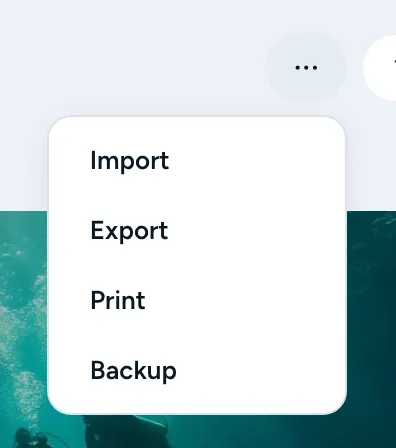
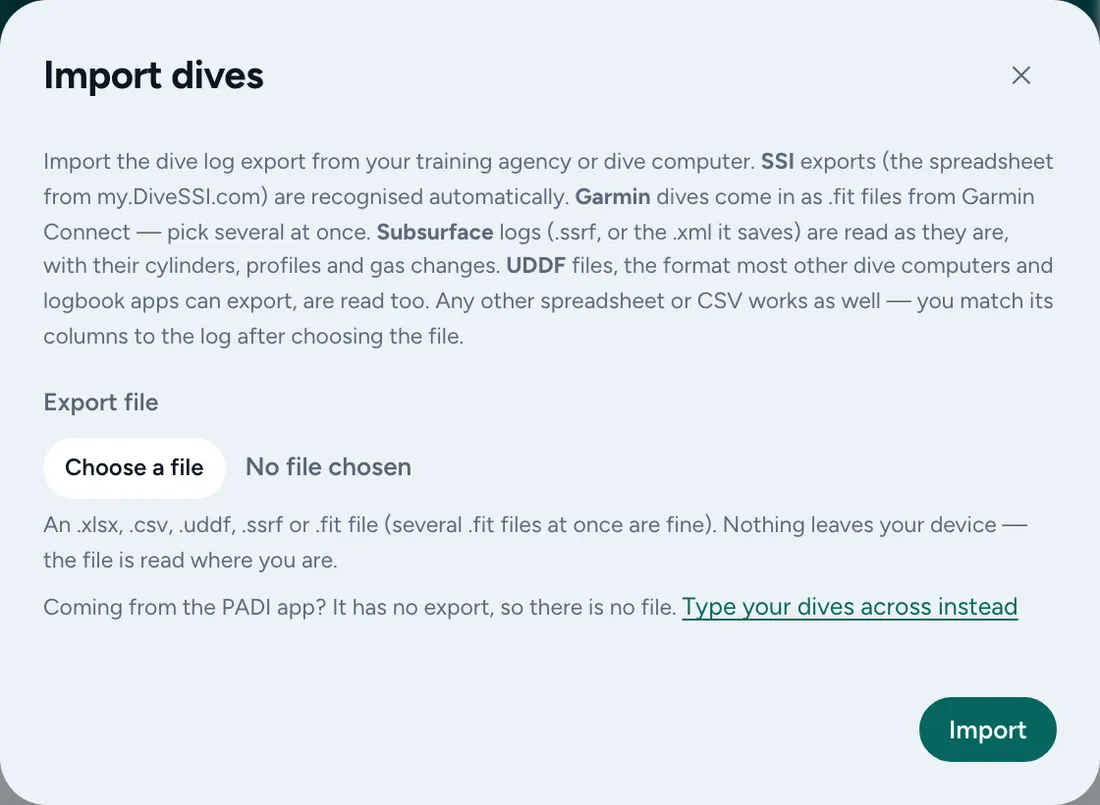
- Open the ⋯ menu (Your data) and choose Import (on a phone: More, then Import). The Import dives window opens.
- Under Export file, choose the .uddf file.
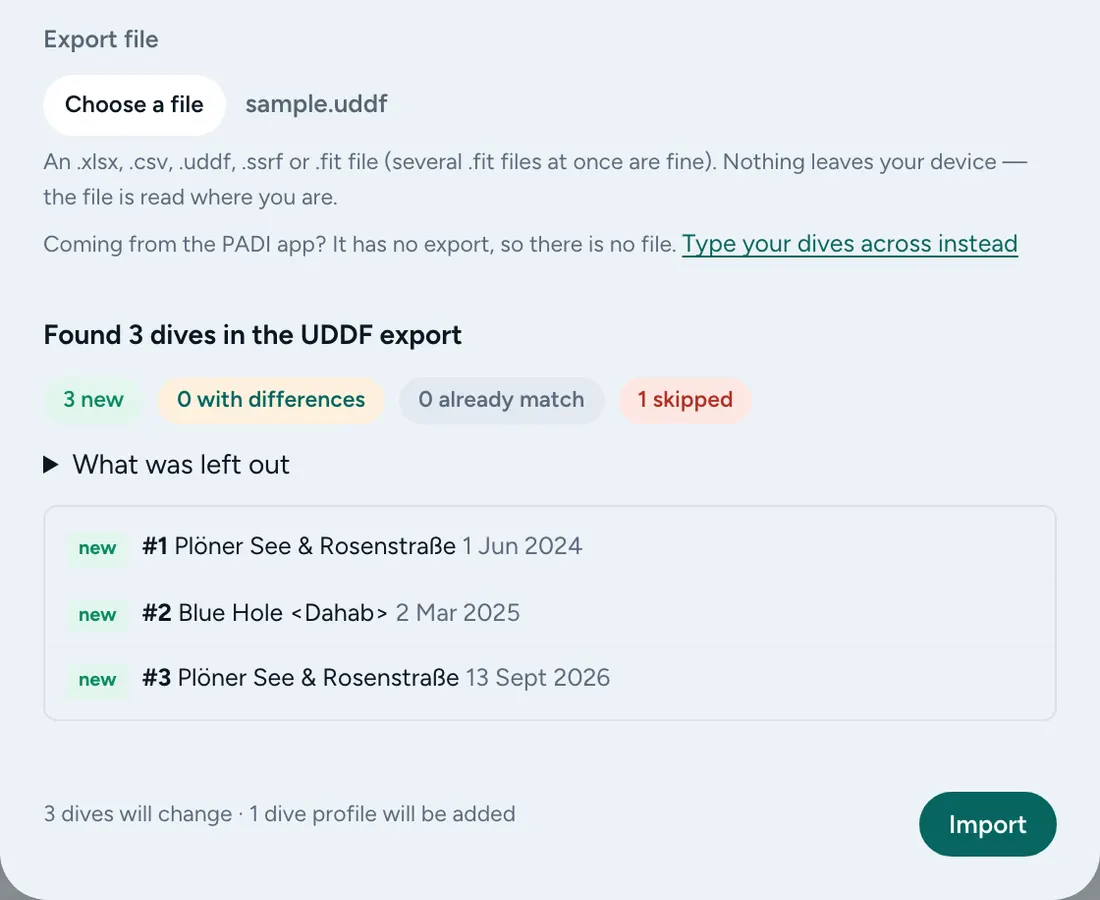
- Read the preview. It counts the dives that are new, the ones already in your log and the ones that differ, and lists each dive. Nothing has been saved yet.
- Press Import.
What comes across
- Dive sites, dates and times, depth, length, the gases and the depth profile, wherever the file has them.
- A dive the file holds too little for, such as one with no date, is not imported. The preview lists it under What was left out with the reason.
Where the export steps come from
Checked against these pages on 17 October 2026. Apps change; if a menu has moved, the file you are looking for is the same.