Moving your dives from MySSI to Loggerfish
The logbook you keep in MySSI can be downloaded from my.DiveSSI.com as a spreadsheet. Loggerfish recognises that spreadsheet as it is, so there are no columns to match by hand.
1. Export from MySSI
- If you log dives in the MySSI app, sync it first so the website has every dive. SSI’s FAQ puts this behind the gear icon, under settings and sync.
- Sign in at my.DiveSSI.com in a web browser. SSI keeps your electronic logbook in your online profile as well as in the app.
- Open your logbook and download it as a spreadsheet. Keep the file exactly as it arrives.
SSI’s help pages do not describe the logbook download, and SSI redesigned MySSI in September 2026, so the menu names may differ from what you see. Loggerfish reads the spreadsheet in its older layout and in the September 2026 one.
2. Import into Loggerfish
- Open Loggerfish at app.loggerfish.com. Importing needs no account: the file is read on your own device.
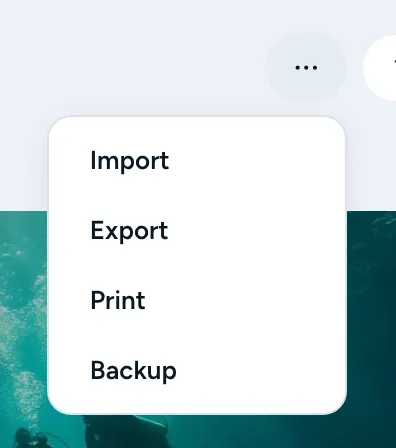
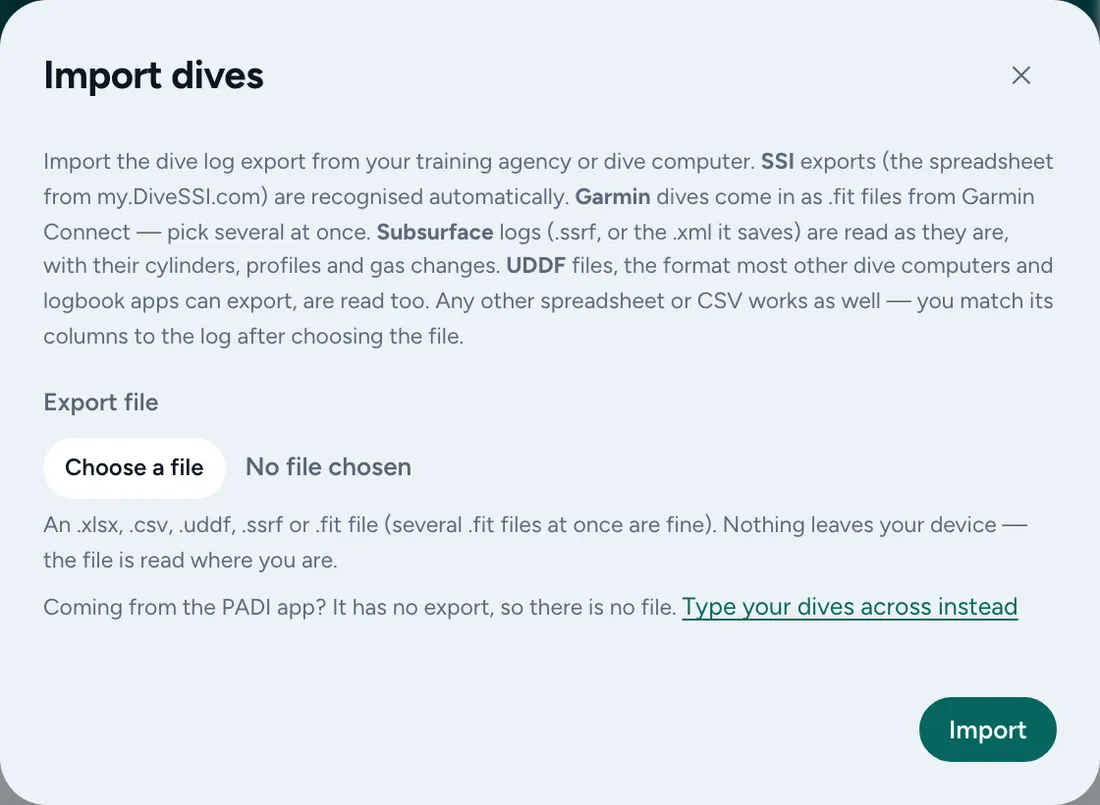
- Open the ⋯ menu (Your data) and choose Import (on a phone: More, then Import). The Import dives window opens.
- Under Export file, choose the spreadsheet: the .xlsx or the .csv file both work.
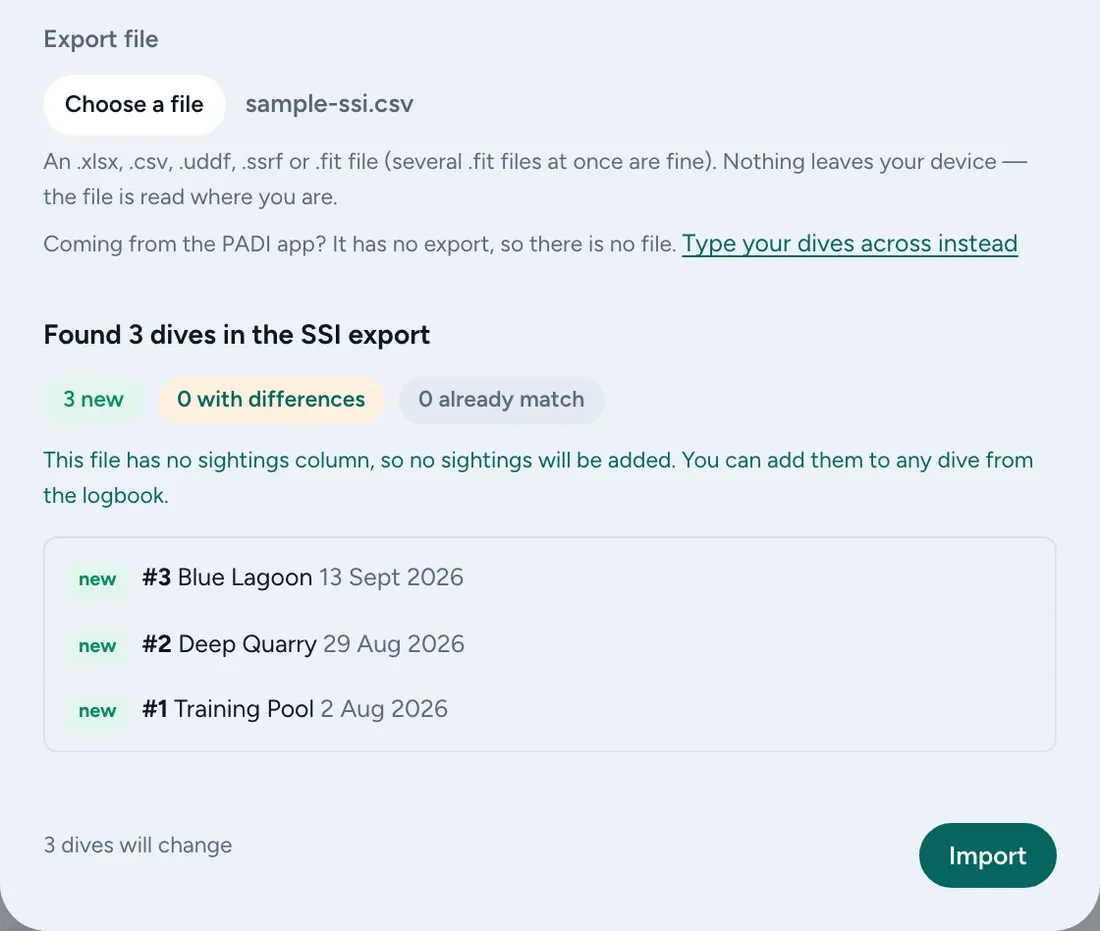
- Read the preview. It counts the dives that are new, the ones already in your log and the ones that differ, and lists each dive. Nothing has been saved yet.
- Press Import.
What comes across
- Dive number, site, country, date and time, length, depth, dive type and who verified the dive. Specialty dives such as wreck, ice or night dives become tags.
- SSI’s spreadsheet has no buddies, SAC rates or sightings, so Loggerfish leaves those alone in your log rather than overwriting them with blanks.
Where the export steps come from
Checked against these pages on 17 October 2026. Apps change; if a menu has moved, the file you are looking for is the same.