Moving from Suunto (app / DM5) to Loggerfish
Suunto’s phone app can save an activity as a FIT file, and Loggerfish reads FIT dive files. DM5, Suunto’s older desktop program, exports nothing Loggerfish reads, but Subsurface can open its logs. This guide covers both routes.
1. Export from Suunto
- Open the Suunto app on your phone and check that the dive has synced from your watch or dive computer.
- Open the dive, tap the three dots in the top right corner and choose the FIT file.
- Save the file to your phone or computer. Do this for each dive you want to bring across, and keep the .fit files together in one folder.
Suunto’s help article on exporting from the app describes workouts in general and does not mention dives, so the menu may differ for a dive in your version. It says recordings without GPS can only be exported as FIT files.
Loggerfish reads FIT dive files as Garmin Descent watches write them, and has only been tested with those: we had no Suunto dive file to test with. A file Loggerfish cannot read as a scuba dive is listed in the preview as left out, with the reason, and nothing is saved from it.
If your dives are in DM5 on a computer
- Install Subsurface, the free open-source logbook, on your computer and open it.
- In Subsurface choose Import from the main menu, then Import Log Files. Pick Suunto Dive Manager (DM3, DM4, DM5) in the list of formats at the bottom right and select the file Subsurface asks for.
- Check the dives in Subsurface, then save the log: Subsurface keeps changes in memory until you save.
- Find the saved .ssrf file. That is the file to bring into Loggerfish.
DM5 itself exports PDF, SDE, XML, SML and DAN DL7 files, according to Suunto’s help, and UDDF is not among them. None of those is a file Loggerfish reads, which is why this route goes through Subsurface. Subsurface’s manual lists Suunto Dive Manager as an import format; we have not tried it with DM5 data ourselves.
2. Import into Loggerfish
- Open Loggerfish at app.loggerfish.com. Importing needs no account: the files are read on your own device.
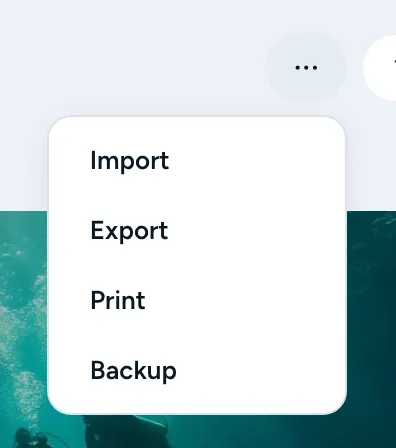
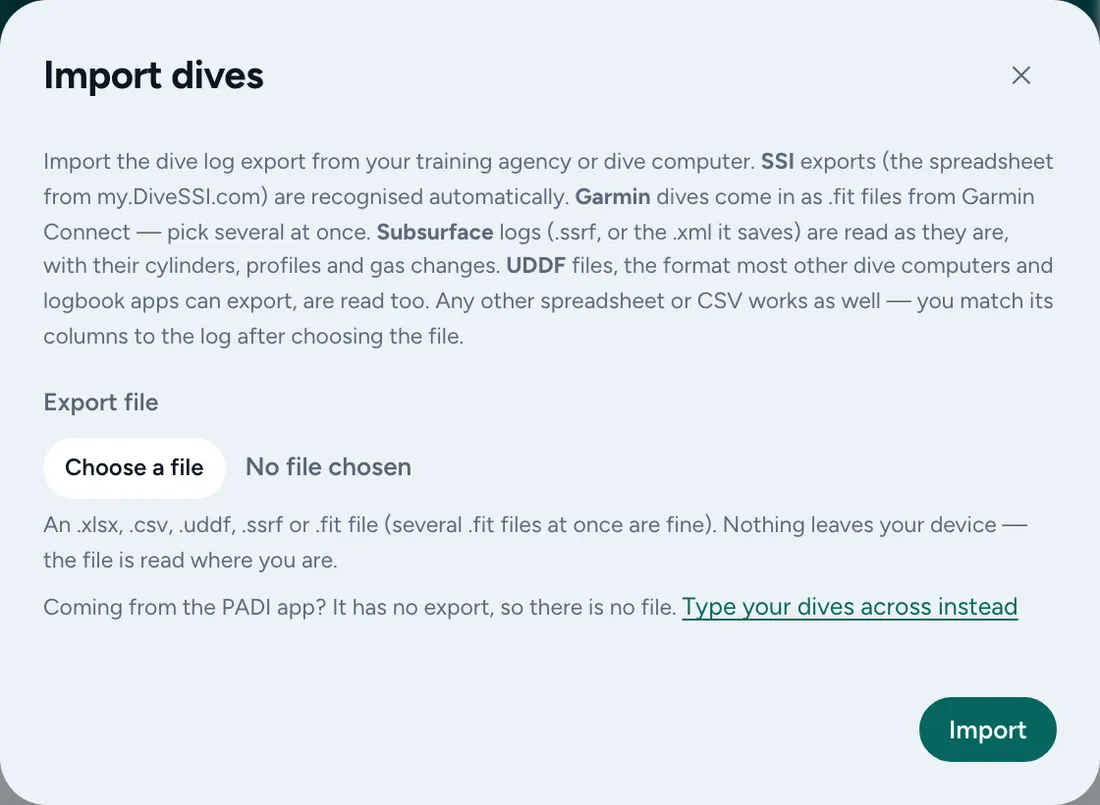
- Open the ⋯ menu (Your data) and choose Import (on a phone: More, then Import). The Import dives window opens.
- Under Export file, choose all your .fit files in one go by selecting several in the file picker, or the .ssrf file from Subsurface.
- Read the preview. It counts the dives that are new, the ones already in your log and the ones that differ, and lists each dive. Nothing has been saved yet.
- Press Import.
What comes across
- From a FIT dive file: date, local start time, maximum and average depth, dive length and the lowest water temperature.
- The gases set on the watch (air, nitrox, trimix; a gas that was switched off is left out) as cylinders, and the gas changes during the dive.
- The depth profile with temperature, no-stop time, CNS, oxygen partial pressure, ceilings and heart rate, the dive’s alarms, the gradient factors, and the computer’s own dive number, where the file has them.
- Pressures, cylinder size and air consumption only when a transmitter reported pressures.
- FIT files have no site name. A dive already in your log that is the same dive keeps its site and gains the profile. Any other dive is named from its GPS position, or comes in without a site when the file has no position.
What does not come across
- Buddies, notes, visibility, rating and gear: Loggerfish does not read these from a FIT file.
- Freediving activities and files that are not scuba dives are not imported. The preview lists each under What was left out with the reason.
- Through Subsurface, only what Subsurface itself brought in from DM5 can reach Loggerfish.
Where the export steps come from
- Suunto: What type of files can I export from the Suunto app?
- Suunto: How do I import / export dive logs to DM5?
- Subsurface user manual
Checked against these pages on 29 October 2026. Apps change; if a menu has moved, the file you are looking for is the same.