Moving from the PADI app to Loggerfish
PADI’s app pages describe a digital logbook and name no export, so there is no file to import. What works is typing the dives across once, in a grid made for it, or pasting them from a spreadsheet.
1. Check for an export
- Look in the PADI app’s settings and help for an export or share option, and ask PADI’s support whether one exists for your account.
- If there is one, use it. Loggerfish reads any spreadsheet or CSV file and you match its columns after choosing it.
- If there is none, note each dive you want to keep: the date, the site, the maximum depth and the time.
We read the PADI app’s page on padi.com and its App Store listing on 22 October 2026: they describe a digital logbook and name no way to export it. We have not opened the app itself, which needs an account. If it has an export we missed, use it.
2. Import into Loggerfish
- Open Loggerfish at app.loggerfish.com. Typing dives in needs no account.
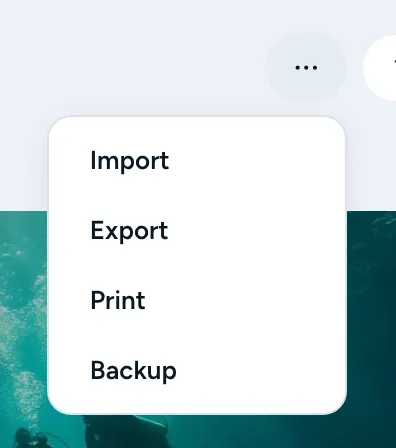
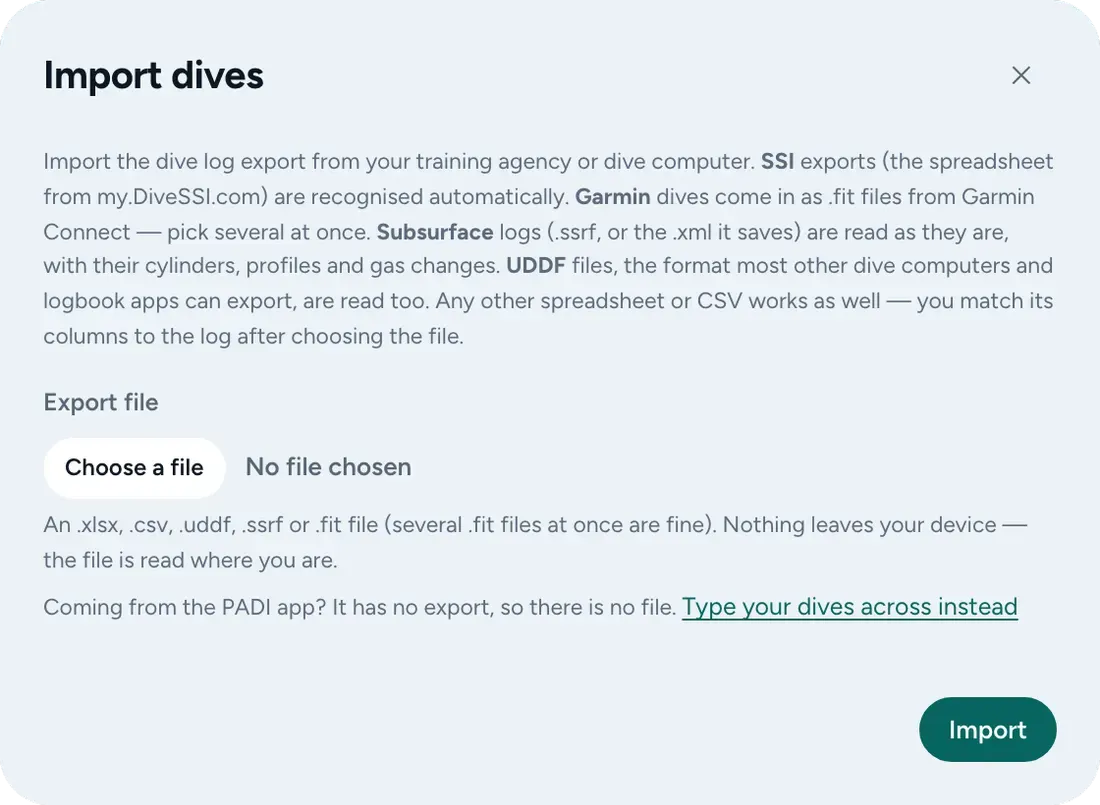
- Open the ⋯ menu (Your data) and choose Import (on a phone: More, then Import). The Import dives window opens.
- Under the file button, press “Type your dives across instead”.
- Type the dives into the grid, or paste rows from a spreadsheet. Columns whose headings it knows go into the right place.
- Read the preview. Nothing has been saved yet. Press Import.
What comes across
- The dives you type or paste, with the columns you fill in.
- Loggerfish does not connect to the PADI app and does not ask for your PADI login.
What does not come across
- Anything you do not enter. There is no file to read the PADI app’s logbook from, so each dive you want comes from you.
Where the export steps come from
Checked against these pages on 22 October 2026. Apps change; if a menu has moved, the file you are looking for is the same.
Every dive. One logbook.
